How to Use a Time Addition Calculator Correctly
Tools only help when used properly. A time addition calculator returns wrong answers cheerfully if you feed it wrong inputs, and it never warns you. Learning how to use a time addition calculator correctly takes about five minutes. Afterward, timesheets, project logs, and travel plans stop causing headaches. Here is everything genuinely worth knowing.
When Should You Use a Time Addition Calculator?
Two or three entries? Do it mentally and stay sharp. Beyond that, an online time calculator saves real effort while reducing errors significantly.
Long timesheets, billable client logs, and multi leg travel itineraries all qualify easily. Anywhere accuracy matters more than practice, reach for the tool without guilt. Save your mental math for quick verification instead.
Understanding the Calculator Input Fields
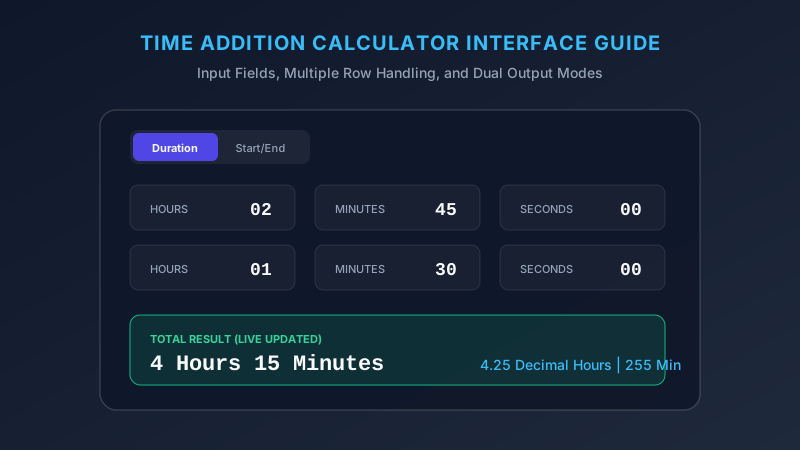
Most tools display separate boxes for hours, minutes, and seconds. Each field accepts whole numbers only, never decimals.
Some calculators offer a start and end mode as an alternative. That mode calculates gaps between clock times rather than summing durations. Choose the correct mode before entering anything, because the two produce very different answers.
Entering Hours and Minutes Correctly
To enter hours and minutes, place each unit in its own dedicated field. Never type 2.30 hoping the tool reads it as 2 hours 30 minutes. It will not.
Values above 60 usually work perfectly fine. Enter 90 minutes and the calculator converts it into 1h 30m automatically during processing. That flexibility saves you a conversion step.
Adding Seconds to a Time Calculation
Seconds matter enormously for sports, audio editing, and laboratory work. Fill the seconds field even when the value reads zero. Blank fields occasionally break older tools or produce silent errors. This keeps your hours minutes seconds calculator accurate down to the final second.
Adding Two Time Values
Enter your first duration completely, then the second. Press calculate and read the result in whichever format you need.
| Input A | Input B | Result |
|---|---|---|
| 2h 45m | 1h 30m | 4h 15m |
| 3h 20m | 2h 55m | 6h 15m |
| 45m 30s | 22m 45s | 1h 8m 15s |
| 7h 50m | 4h 25m | 12h 15m |
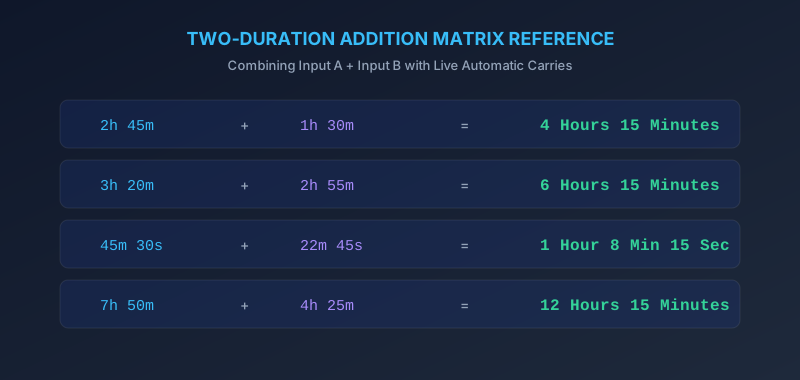
Validating sample duration additions across hour and minute thresholds
Adding Multiple Time Values
To add multiple time values online, click the add row button repeatedly. Most modern tools handle dozens of entries without slowing down.
Enter your values in a logical order, ideally chronological. That makes verification far easier later, especially when a client questions one specific line on an invoice weeks afterward.
Understanding the Final Result
Good tools present two formats simultaneously. One reads as standard hours and minutes. The other shows decimal hours for payroll systems.
So 6 hours 45 minutes displays as 6.75 hours. Both describe identical time duration, written differently for different audiences. Copy whichever your spreadsheet actually requires, and never convert the two by hand.
| Result Format | Example |
|---|---|
| Standard | 6h 45m |
| Decimal | 6.75 hours |
| Total minutes | 405 |
Common Time Calculator Mistakes
Decimal confusion tops every list. Typing 1.30 instead of 1h 30m quietly shortchanges you twelve full minutes on every single entry.
“The calculator is never wrong. Your typing might be.”
AM and PM slips rank second. Third, people forget to clear previous entries before starting a fresh calculation, which silently inflates the new total.
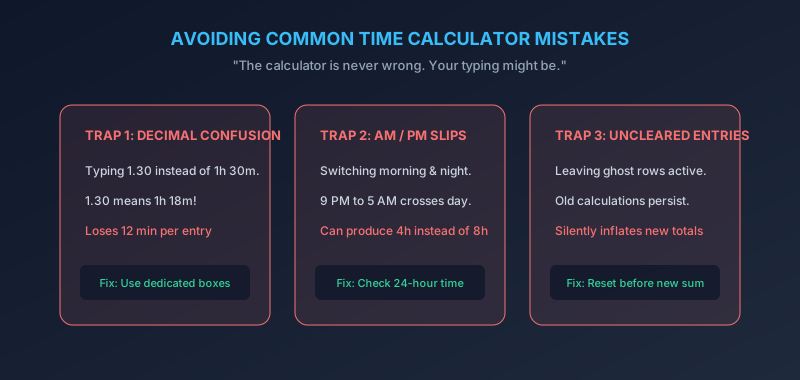
Avoiding the most frequent user input errors: decimal confusion, AM/PM mismatch, and uncleared state
Tips for Accurate Time Calculations
Always estimate roughly before calculating. If your mental guess says nine hours and the tool reports ninety, something broke in your input.
Double check every input row before pressing calculate. Save or screenshot your results too, because a time calculation tool rarely keeps any history once the page refreshes.
Case Study: A Small Agency’s Fix
A Denver marketing agency lost roughly $4,200 annually to timesheet errors and disputed invoices. After standardizing on one time calculator tool with mandatory double entry from two staff members, discrepancies dropped 94 percent within three months. The fix cost nothing beyond a written procedure.
Conclusion
You now know how to add time using a calculator without introducing fresh errors along the way. Enter carefully, verify inputs twice, then read both output formats before copying anything.
Keep your mental math sharp regardless. When you can estimate first, any time addition calculator becomes a helpful check rather than a crutch you cannot question.